Manage your Code Reviewer seats
Control access to Code Reviewer by managing seats, assigning users, and adding more through billing.
The Tenki Code Reviewer uses a seat-based model. Each active developer must have an assigned seat to trigger code reviews.
This guide explains how to manage seats, including how to assign, update, and remove them:
Get additional seats
To purchase additional seats, go to the Billing Activity page :
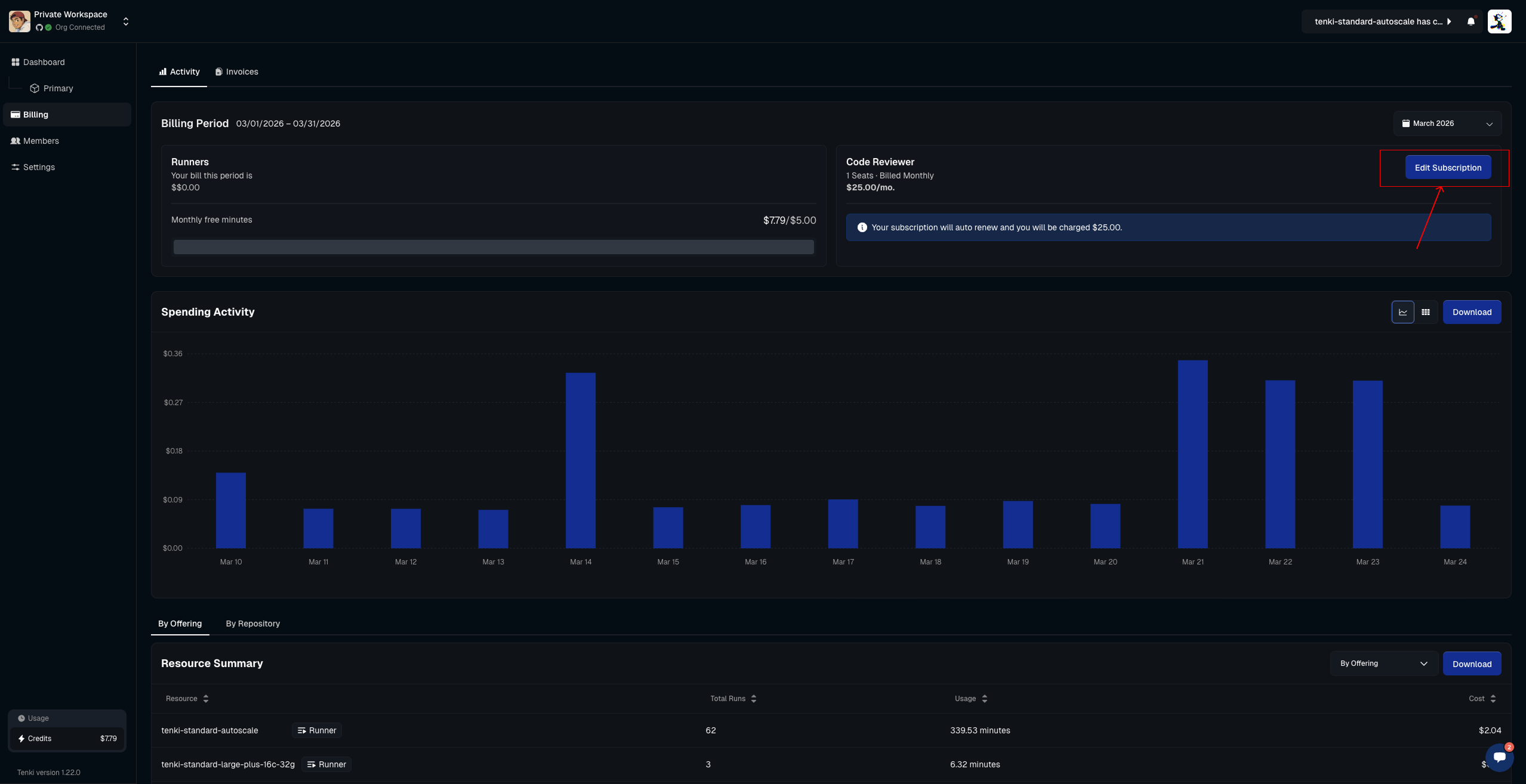
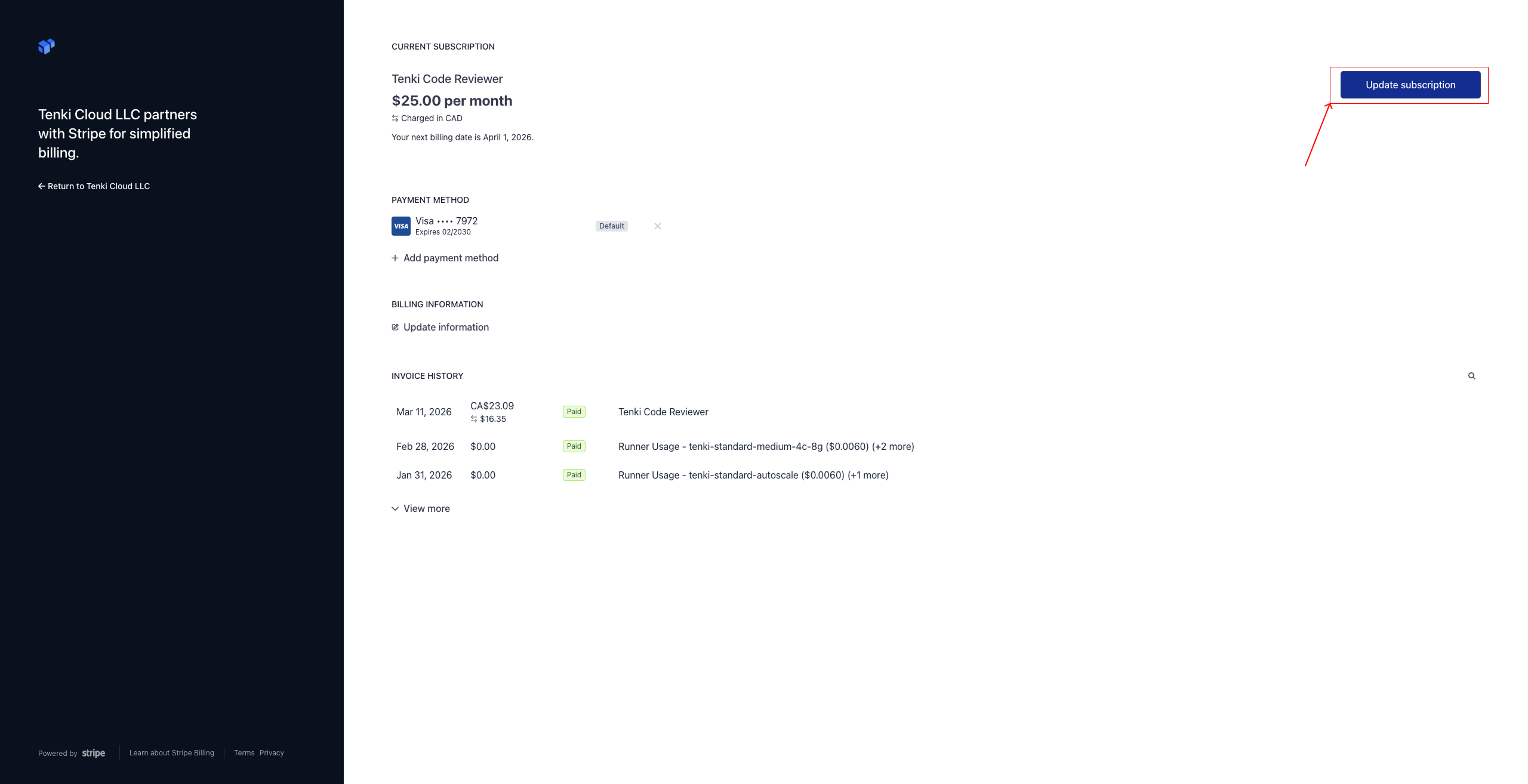
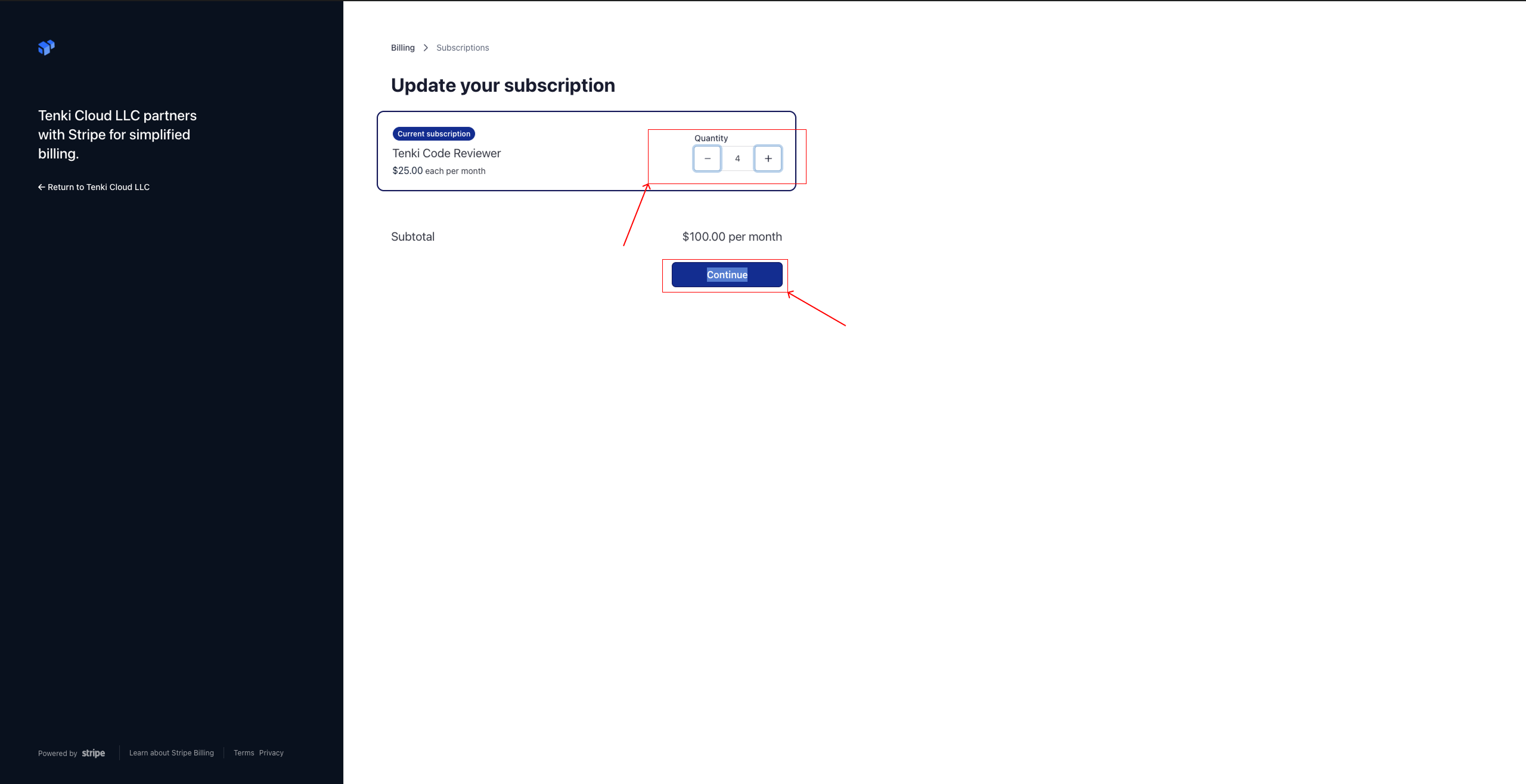
Select Buy or Edit Subscription button. You will be redirected to the Stripe page, where you can complete your purchase and/or manage your seats.
Seat Management
Access the Seat Management page
To get started, go to the Seat Management page by selecting Settings and then the Code Reviewer tab. You should see the full table of
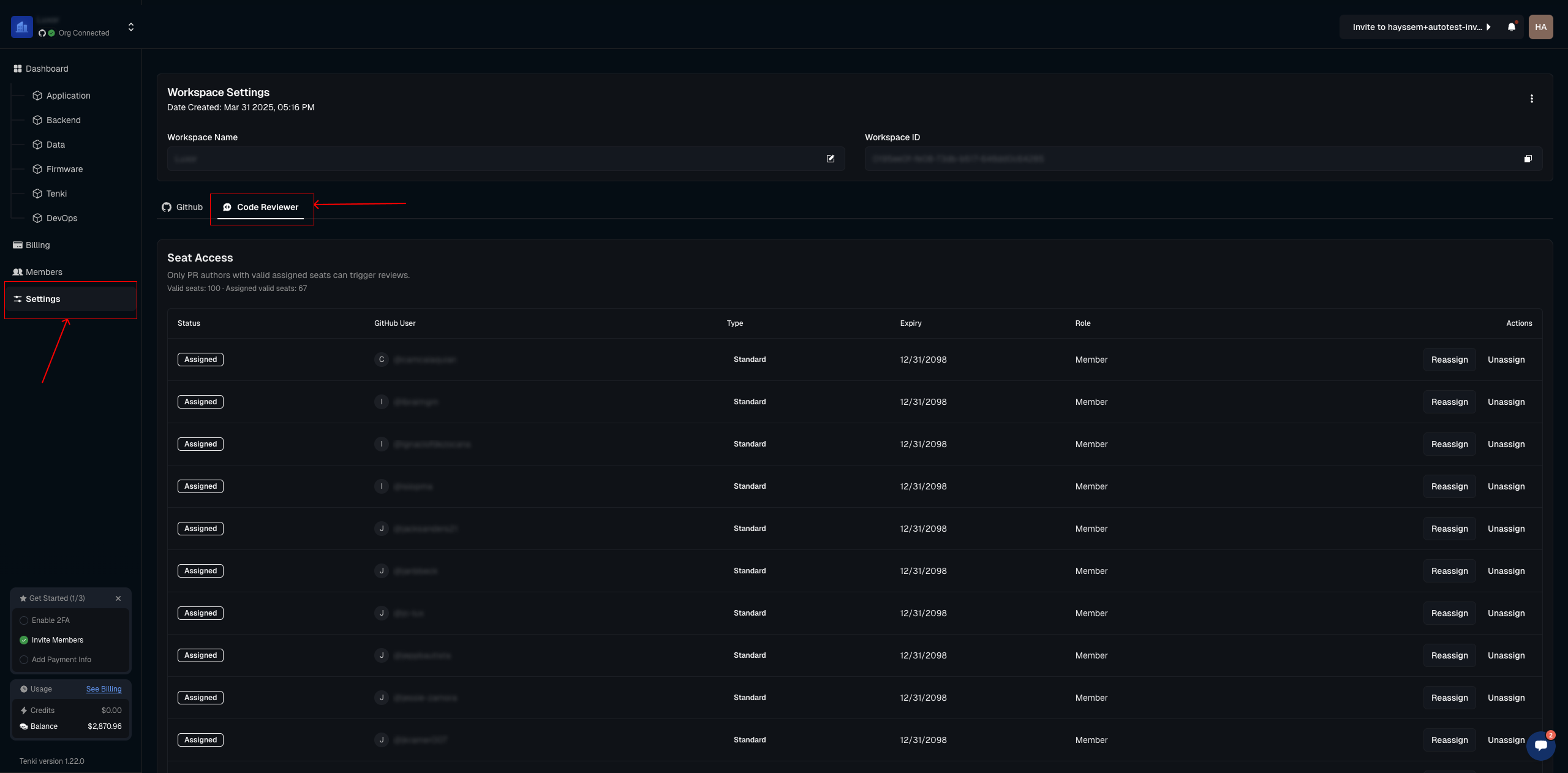
Assign a seat
All seats purchased through the billing system will appear here, ready to be assigned to GitHub users as shown below.
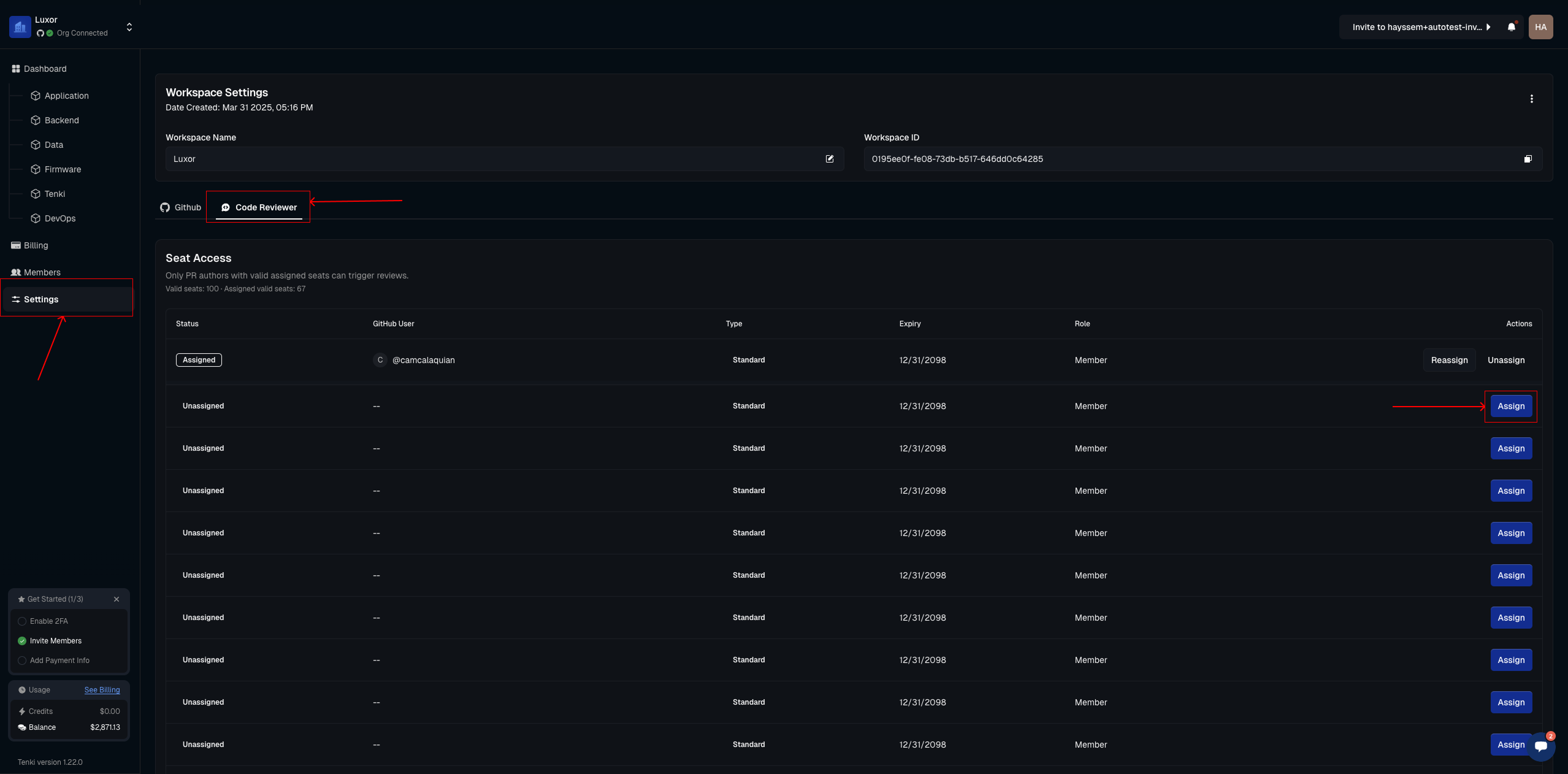
After clicking the Assign button, you’ll be prompted to enter a GitHub username. Once entered, confirm to complete the assignment.
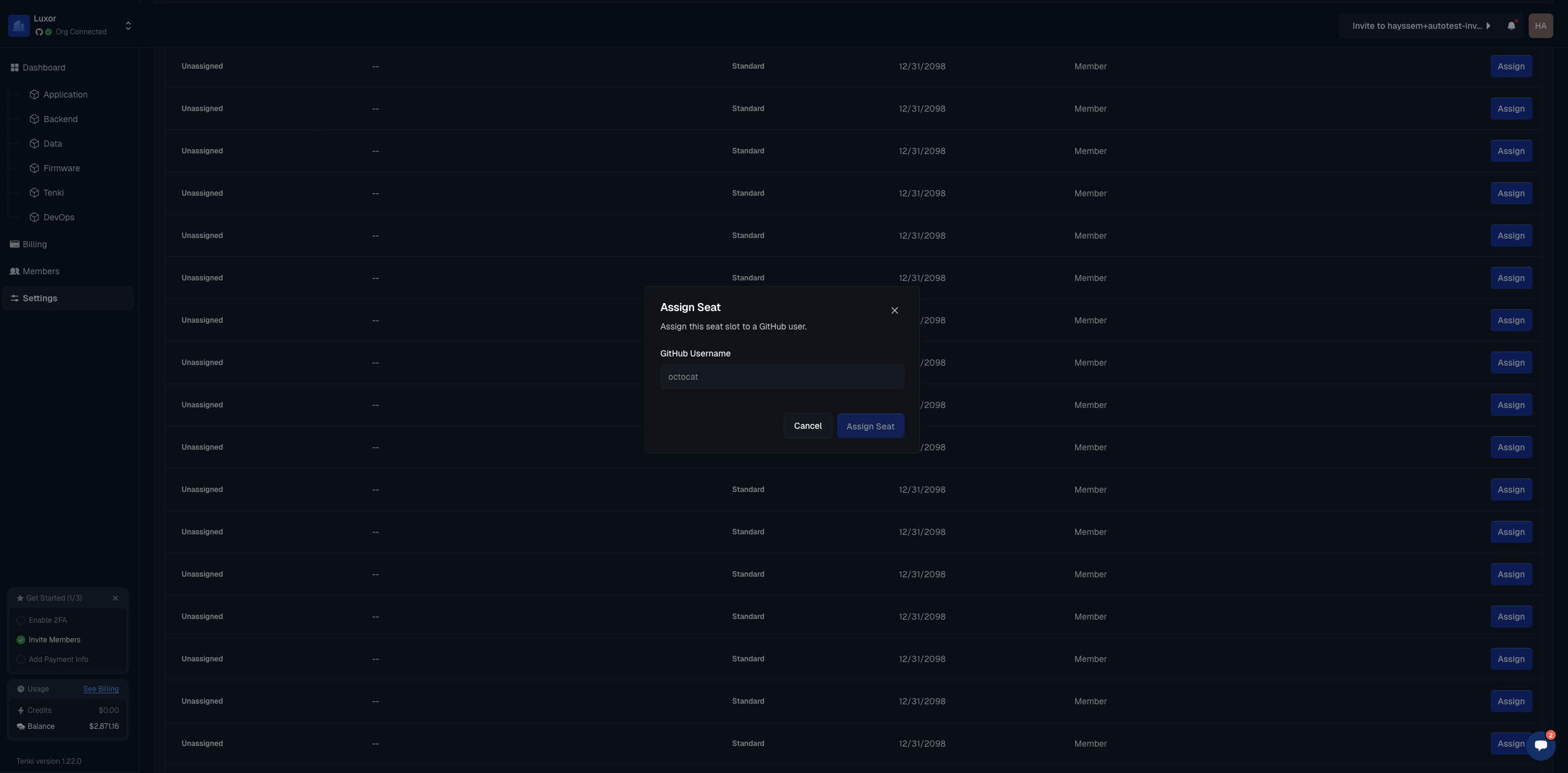
The user will now be able to trigger the Code Reviewer automatically when opening a PR or manually by tagging
@tenki-reviewer.
Manage assigned seats
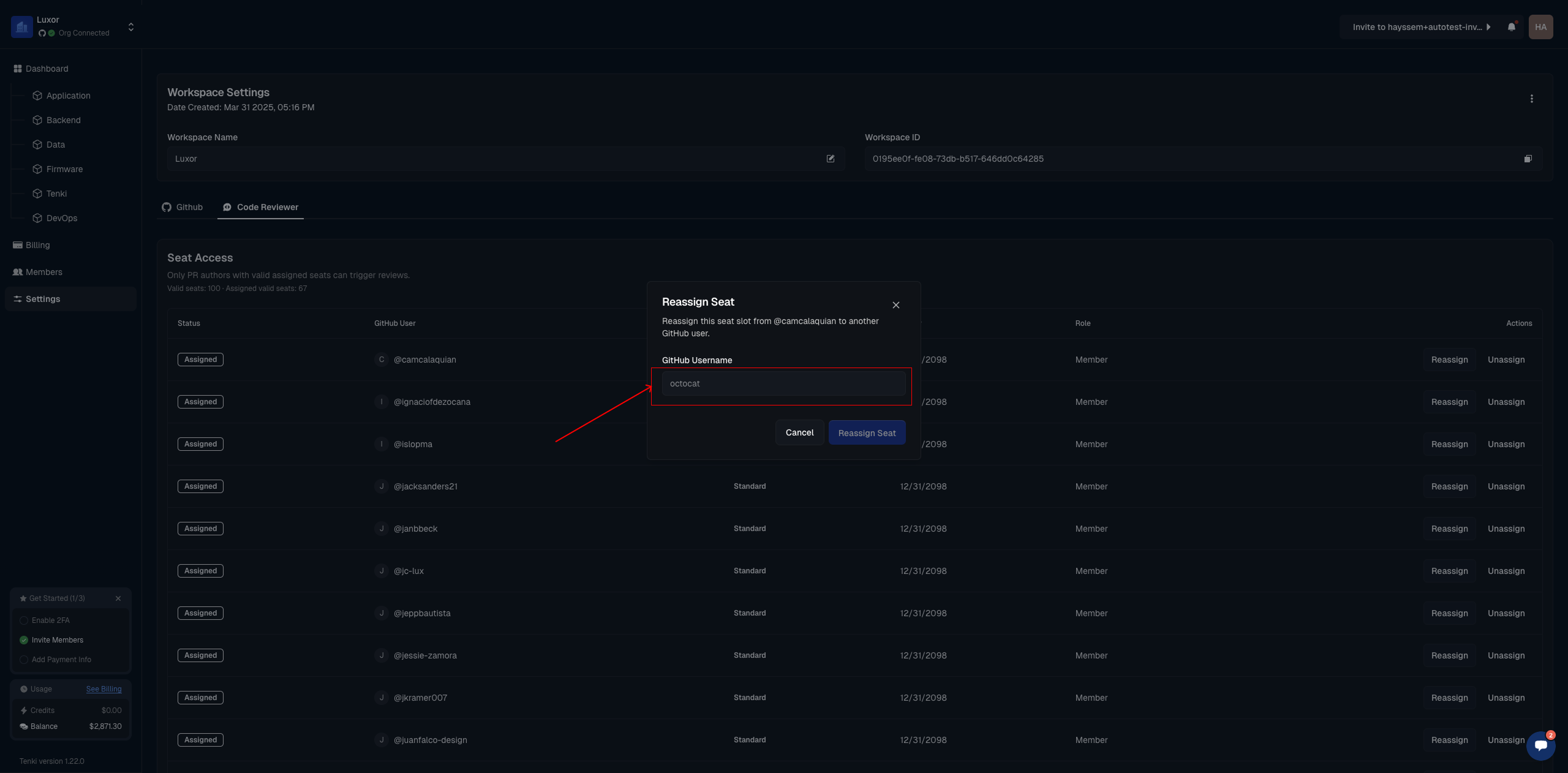
To manage existing seats, whether to update, reassign, or remove a user, open the same table and click the Reassign or Unassign button.
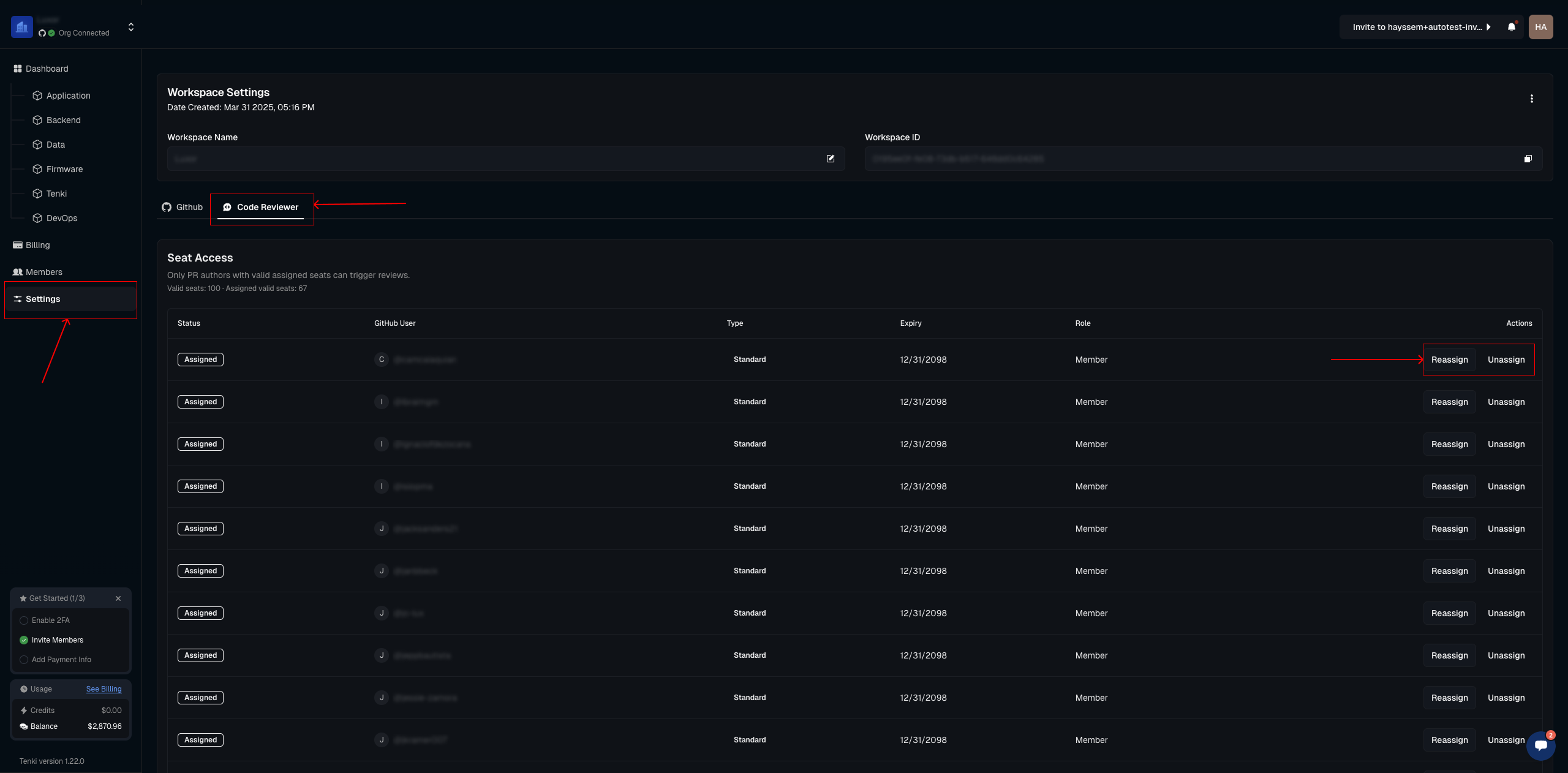
This works the same way as assigning a seat, just enter the GitHub user you want to grant access to.